

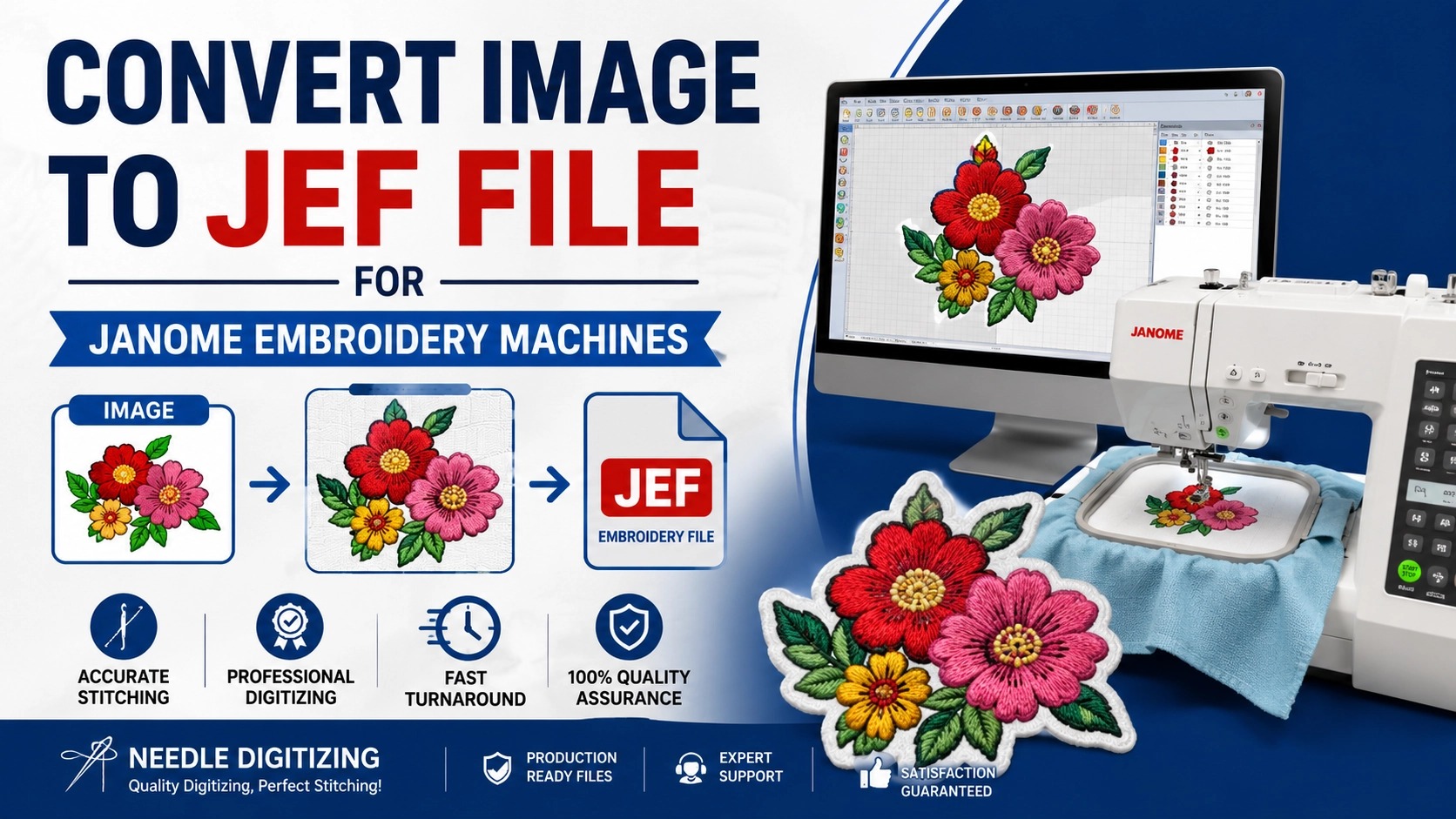

You have a beautiful image on your computer. Maybe it is a logo, a piece of artwork, or a special design for a quilt. You own a Janome embroidery machine, and you want to stitch that design perfectly onto fabric. But your machine does not read JPGs or PNGs. It needs a JEF file. The JEF format is native to Janome machines, and it contains stitch-by-stitch commands. Turning your picture into a high-quality JEF file requires a careful, step-by-step process. If you rush or use automated tools, you will end up with broken threads, puckered fabric, and inaccurate shapes. That is why learning to convert image to JEF file with maximum stitch accuracy is essential for anyone serious about Janome embroidery.
Let me guide you through the exact steps. Whether you decide to do the conversion yourself using professional software or hire an expert, understanding the process will help you get flawless results. A precise convert image to JEF file workflow ensures that every stitch lands exactly where it should, preserving the details of your original design. Follow along, and you will never again settle for blurry, distorted embroidery.
Step 1: Prepare Your Source Image for Digitizing
The first step happens before you even open any software. Your source image quality directly determines the final stitch accuracy. Start with the highest resolution version you have. A JPG or PNG that is at least 1500 pixels on the shortest side works best. If your image is small or pixelated, the digitizer will have to guess missing details, and those guesses become stitch errors. Remove any effects that embroidery cannot reproduce: drop shadows, glows, gradients, and transparency. Convert gradients to solid colors. Increase contrast so edges are clear. If your image contains text, make sure the font is not too thin or small. Letters under a quarter inch tall will not sew accurately. For the best results, provide a vector file like AI or EPS if you have one. Clean, high-contrast artwork is the foundation of accurate JEF conversion.
Step 2: Choose Your Digitizing Method
You have two paths to convert image to JEF file. The first is manual digitizing using professional software like Wilcom Hatch, Embrilliance, or Janome’s own Digitizer MB. The second is outsourcing to a professional digitizing service. Manual digitizing gives you full control but requires a significant investment in software (hundreds to over a thousand dollars) and dozens of hours of practice. Outsourcing costs fifteen to forty dollars per design and delivers a ready-to-sew JEF file within one to three days. For most people, especially those who only need a few designs per year, outsourcing is the smarter choice for maximum stitch accuracy. If you do it yourself, be prepared for a steep learning curve. If you outsource, choose a service that uses human manual digitizing, not auto-digitizing software.
Step 3: Set Up Your Digitizing Workspace (If Doing It Yourself)
If you decide to digitize manually, you need the right environment. Install your digitizing software on a computer with a large monitor. Import your prepared image. Zoom in to at least 400% so you can see individual pixels. Create a new digitizing layer. Set your hoop size to match your Janome machine’s capabilities. Choose your fabric type from the software’s presets. Different fabrics require different stitch densities, underlay, and pull compensation. For example, a cotton polo needs different settings than a fleece jacket. If your software does not have fabric presets, look up recommended settings online. Then, manually trace your design using the pen or shape tools. This is the most time-consuming part. You are essentially redrawing your image with digital paths that will become stitches.
Step 4: Assign Stitch Types for Accuracy
Not all stitches are equal. To maximize accuracy when you convert image to JEF file, you must assign the correct stitch type to each part of your design. Use satin stitches for borders, lettering, and any narrow areas (typically less than 10mm wide). Satin stitches create a smooth, raised edge. Use tatami (fill) stitches for larger solid areas. Tatami stitches cover evenly without becoming too stiff. Use running stitches for fine details, outlines, and underlay. For each shape, also set the stitch angle. Changing the angle changes how light reflects and how the fabric pulls. For circles, a radial angle works well. For rectangles, a simple horizontal or vertical angle is fine. Avoid using auto-assign features; they often choose suboptimal stitch types that reduce accuracy.
Step 5: Add Underlay for Stability
Underlay is a hidden layer of stitches that goes down before the top design. It stabilizes the fabric and prevents the top stitches from sinking or distorting. Without proper underlay, your JEF file will produce puckered, inaccurate shapes. For soft or stretchy fabrics (like knits or performance wear), use a heavier underlay such as a zigzag or double-run. For stable fabrics (like denim or canvas), a lighter edge run underlay may suffice. For caps, use a center run underlay along the curve. Most professional digitizing software includes automatic underlay generation, but you should verify the settings. Too little underlay, and the design sinks. Too much, and the fabric becomes stiff. Correct underlay is a key factor in stitch accuracy.
Step 6: Apply Pull Compensation
Here is a secret that separates amateur digitizing from professional accuracy. When the needle punches through fabric, it pulls the material slightly inward. Without compensation, a circle sews as an oval, and a square comes out with pinched corners. Pull compensation is the digital stretching of your design in the opposite direction of the pull. For satin stitches, you typically apply compensation perpendicular to the stitch angle. For fill stitches, apply compensation in all directions. Most software lets you set a percentage (e.g., 0.2mm to 0.5mm). Test your compensation on scrap fabric. If your circle still looks oval, increase the compensation. If your shapes are flared or distorted, decrease it. Getting pull compensation right is essential to convert image to JEF file with maximum stitch accuracy.
Step 7: Organize Color Changes and Trims
Efficiency affects accuracy indirectly. Too many thread trims and color changes increase the chance of misalignment. When you digitize, group your design by color. Sew all elements of one color before moving to the next. Place color change commands at logical breaks. Avoid unnecessary trims inside small areas. Also, set the machine to cut thread only when moving to a distant area. For Janome machines, the JEF file stores color change data as separate blocks. Each block represents one color. You can assign thread colors from the Janome thread palette. Use the closest match to your original artwork. Clear organization reduces the risk of the machine skipping a stitch or misregistering between colors.
Step 8: Simulate and Check for Errors
Before you save the JEF file, run a digital simulation. Your software will show you how the needle will move, where trims occur, and whether any stitches overlap in weird ways. Look for long jump stitches (more than 10mm) that could snag. Look for stitches that go outside the hoop boundary. Check that the stitching order makes sense. Some software also includes an “auto audit” feature that flags potential problems like too-dense areas or missing underlay. Fix any issues you find. A clean simulation is a good sign, but it is not a guarantee of accuracy on fabric. That is why the next step is essential.
Step 9: Sew a Physical Test Sample
Digital simulations can hide fabric-specific problems like puckering, thread tension issues, and pull compensation errors. You must sew a physical test on the exact fabric you plan to use. Hoop the fabric with the correct stabilizer. Load your JEF file into your Janome machine. Sew the design. Then inspect it. Are the edges clean? Does the fabric lie flat? Is small text readable? Are circles round? Take a photo next to your original artwork. If you see any inaccuracies, go back to your digitizing software and adjust. Tweak pull compensation, underlay, or density. Test again. Repeat until the test sample matches your original image as closely as possible. This testing loop is the only way to achieve maximum stitch accuracy.
Step 10: Save and Back Up Your Master JEF File
Once your test sample is perfect, save the final JEF file. Name it clearly, including the design name, size, fabric type, and date. For example, “Logo_Corporate_4inch_CottonPolo_2026.jef.” Save it in multiple locations: your computer, an external drive, and cloud storage. Also save a PDF or PNG reference image with the same name. If you ever need to reuse the design on a different fabric or size, you can modify the master file. Do not lose this file. Re-digitizing from scratch costs the same as the original. A well-made JEF file is a long-term asset.
When to Outsource for Guaranteed Accuracy
Let me be honest. The step-by-step process above requires significant skill, time, and expensive software. If you only need to convert image to JEF file occasionally, hiring a professional digitizing service is almost always the best route to maximum accuracy. Experts like Needle Digitizing use manual tracing, fabric-specific settings, and physical test sews. They deliver a ready-to-sew JEF file that works on your Janome machine. The cost is low, the turnaround is fast, and the accuracy is guaranteed. You avoid the software investment and the learning curve. For most small businesses, crafters, and hobbyists, outsourcing is the smart choice.
Conclusion
Converting an image to a JEF file with maximum stitch accuracy is a multi-step process that starts with clean artwork and ends with physical testing. Auto-digitizing and free online converters will never deliver the precision that Janome machines demand. Whether you do it yourself with professional software or hire an expert, follow the steps: prepare your image, choose stitch types manually, add proper underlay, apply pull compensation, simulate, test on fabric, and iterate until perfect. Each step builds on the last. Skip one, and your stitches will show it. But invest the time or a small fee to do it right, and your Janome embroidery will look sharp, lie flat, and impress everyone who sees it. Now go turn that image into a flawless JEF file.